
Users and Teams - CSV Import & Export
Please note
All help content for Flow Capture can now be found here:
help.autodesk.com/view/FLWCAP/ENU
As of August 11, 2026, the site that you’re currently viewing will no longer be updated. Please visit the URL above for the most up to date and accurate information.
Please note: Users and Teams has been released as a Tech Preview, as additional work for full parity with Manage Teams focused on individual user permissions on folders is still ongoing.
If you're looking to add users in bulk, you can use the CSV Import functionality found within the Users and Teams section.
There are two ways in which you can import a CSV of users:
- Import a CSV as contacts, which can then be added to teams and/or assigned to folders
- Import a CSV as members of a team, which will create the contacts and add them to the team in question. If that team has been granted access to folders, the newly imported users will be granted the same access
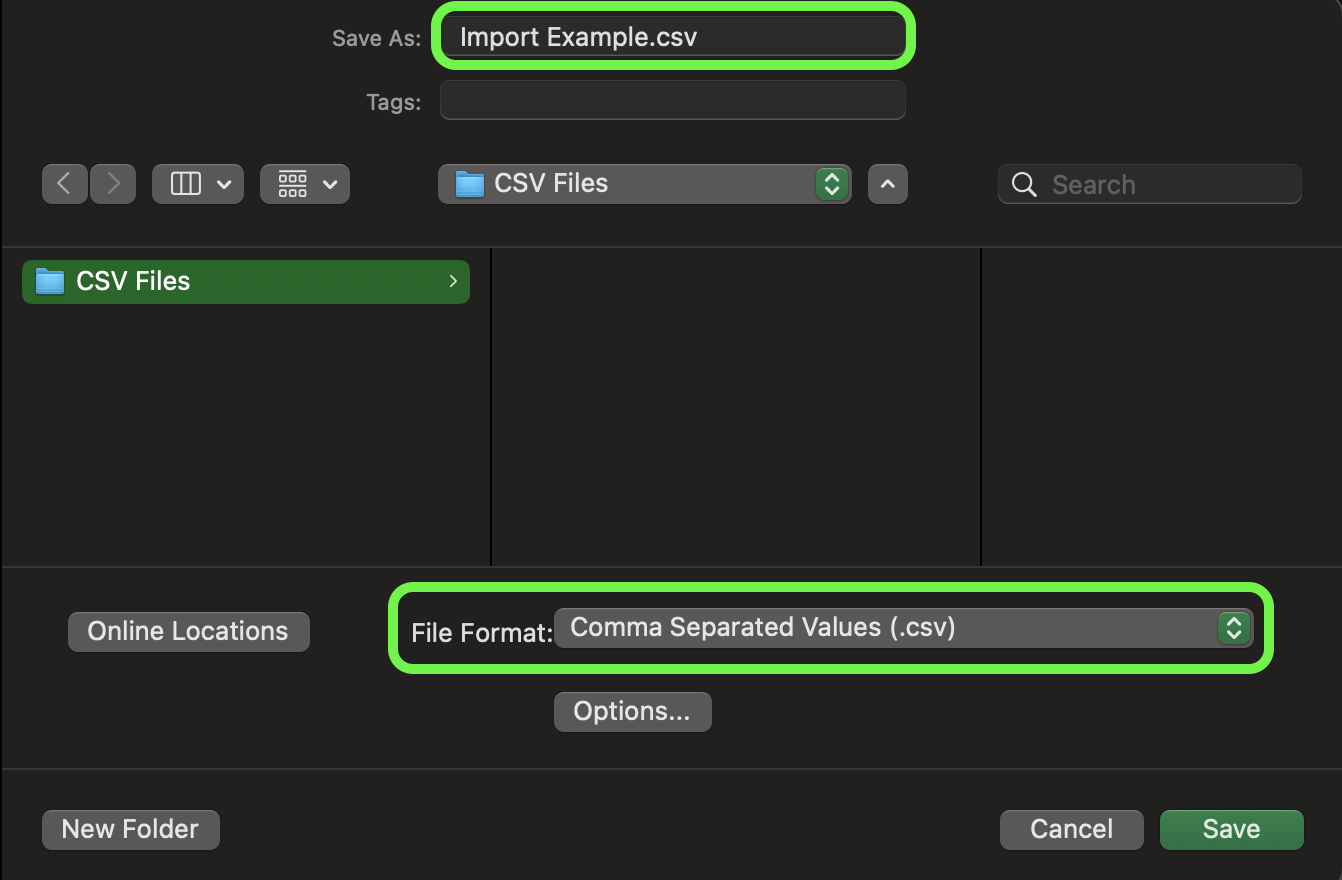
Note: When importing, ensure that your file is a .csv file to avoid issues. This can be done by selecting Save As.., then selecting Comma Separated Values as file format.
Importing as Contacts
Importing users as contacts can be done by browsing to the Users and Teams section, selecting the Users tab, and clicking "Import CSV."

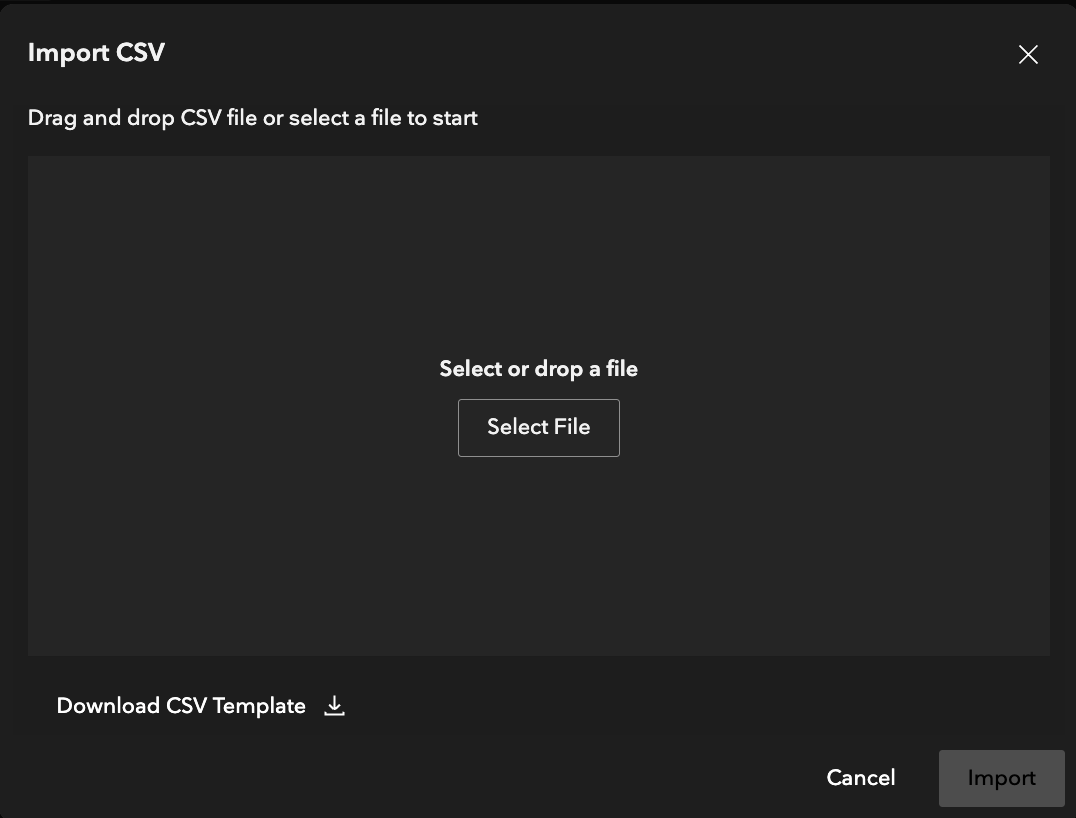
When you do, the following module will pop up, allowing you to upload a CSV file for importing
When importing a CSV file, the format is as follows:
- Column 1: First Name
- Column 2: Last Name
- Column 3: Email Address
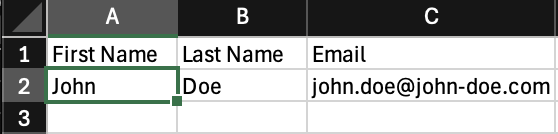
Each new user should be given their own row.
You can also download the CSV template from the import dialogue, make changes, save it, then import to Flow Capture.
Once you've prepped your CSV for import, you'll be shown a pre-flight screen. This indicates the specifics of the users you're about to import so you can do a final check.
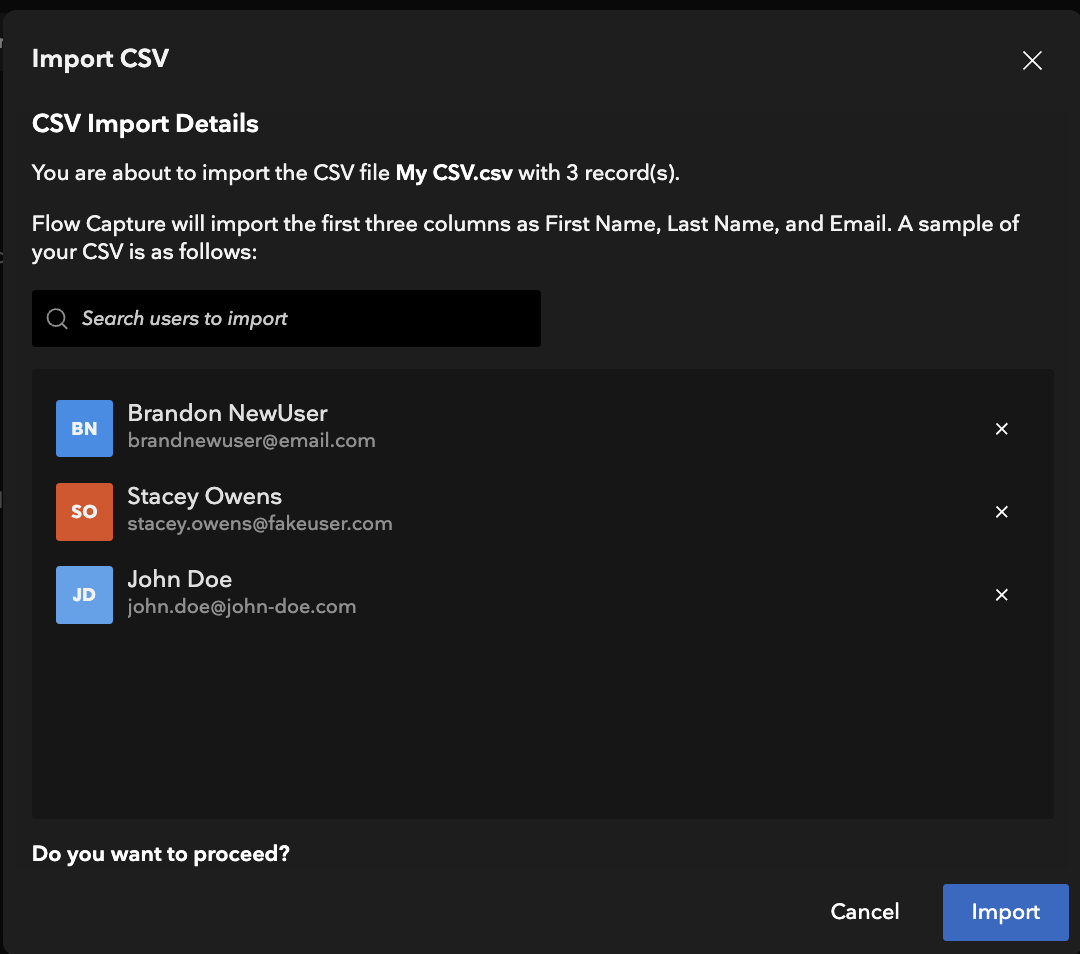
Once you click Import, you'll be given a summary of the users that were just added:
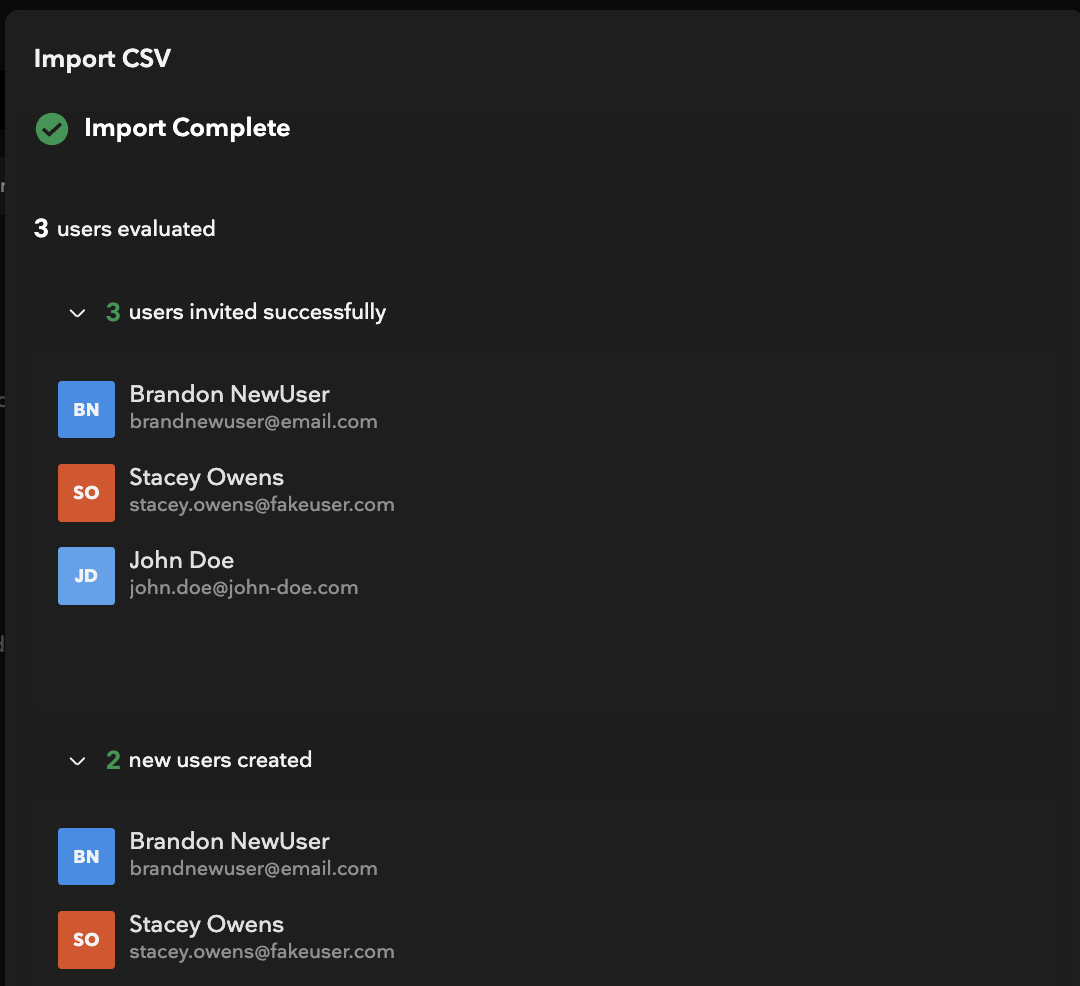
Note: If a user on your import CSV already exists, Flow Capture will identify that the user already has an account and skip it. Your CSV will still successfully import.
Importing as Members of a Team
Importing users as members of a Team is almost an identical process. The only difference is that you'll first browse to that team's detail page, then upload the CSV from there:
First, select one of the Teams tabs from within the Users and Teams section. This can be either Project Teams or Company Teams, depending on what you have access to.
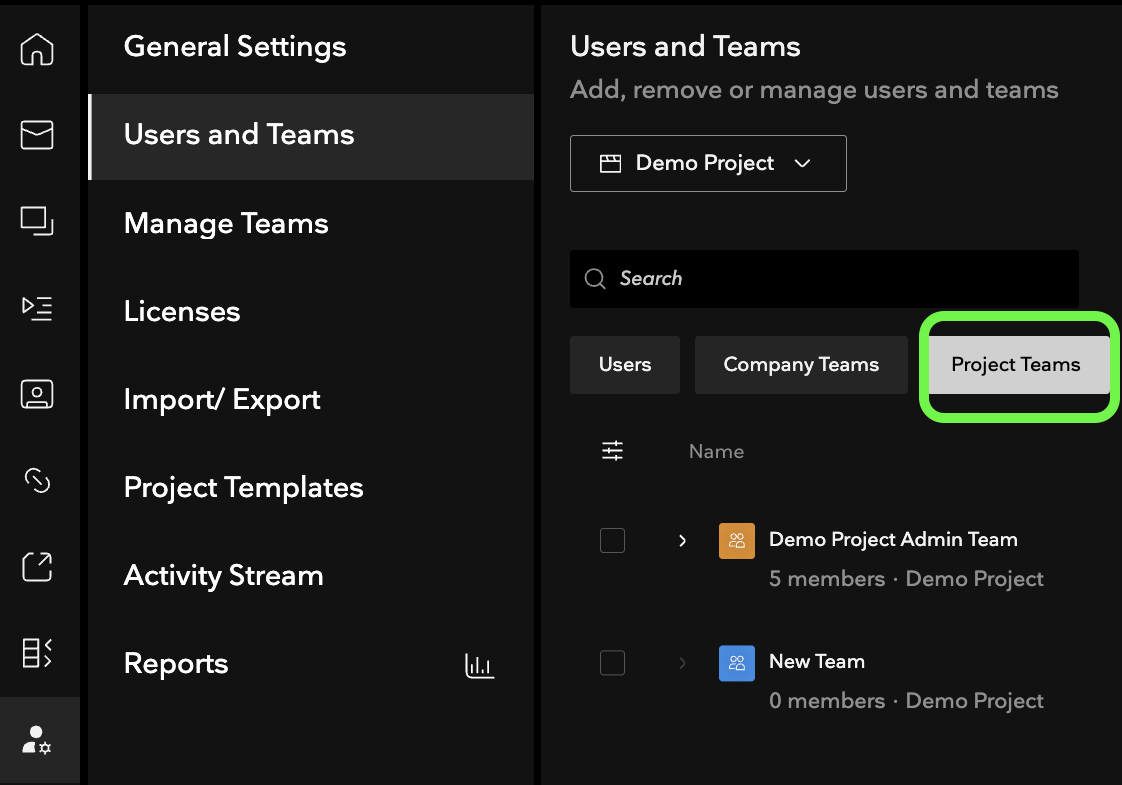
Next, click the team name you want to import users to, which will bring you into the team details screen. We'll import users to our New Team, which is currently empty.
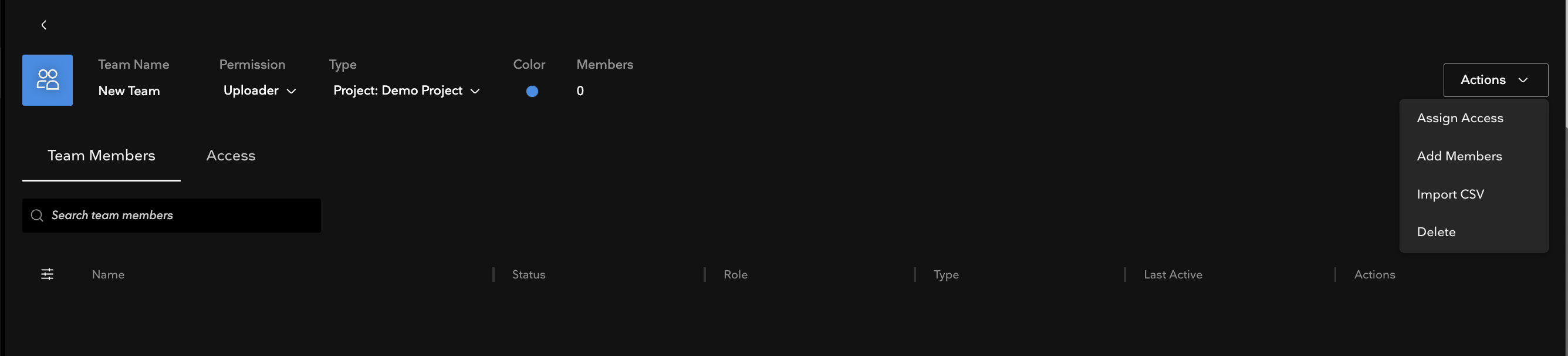
Once you've selected the team to import to, click the Actions menu in the upper right hand corner, then select "Import CSV"
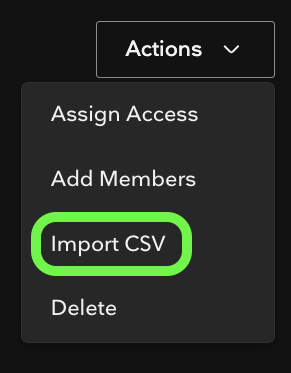
This will bring up the same import module, allowing you to upload a CSV file for importing:
As before, when importing a CSV file, the format is as follows:
- Column 1: First Name
- Column 2: Last Name
- Column 3: Email Address
The template found within that dialogue can be used for importing here, too. As per before, each new user should be given their own row.
Once you've added your CSV for importing, you'll be given the same pre-flight screen, so you can check that the correct users are prepped for importing:
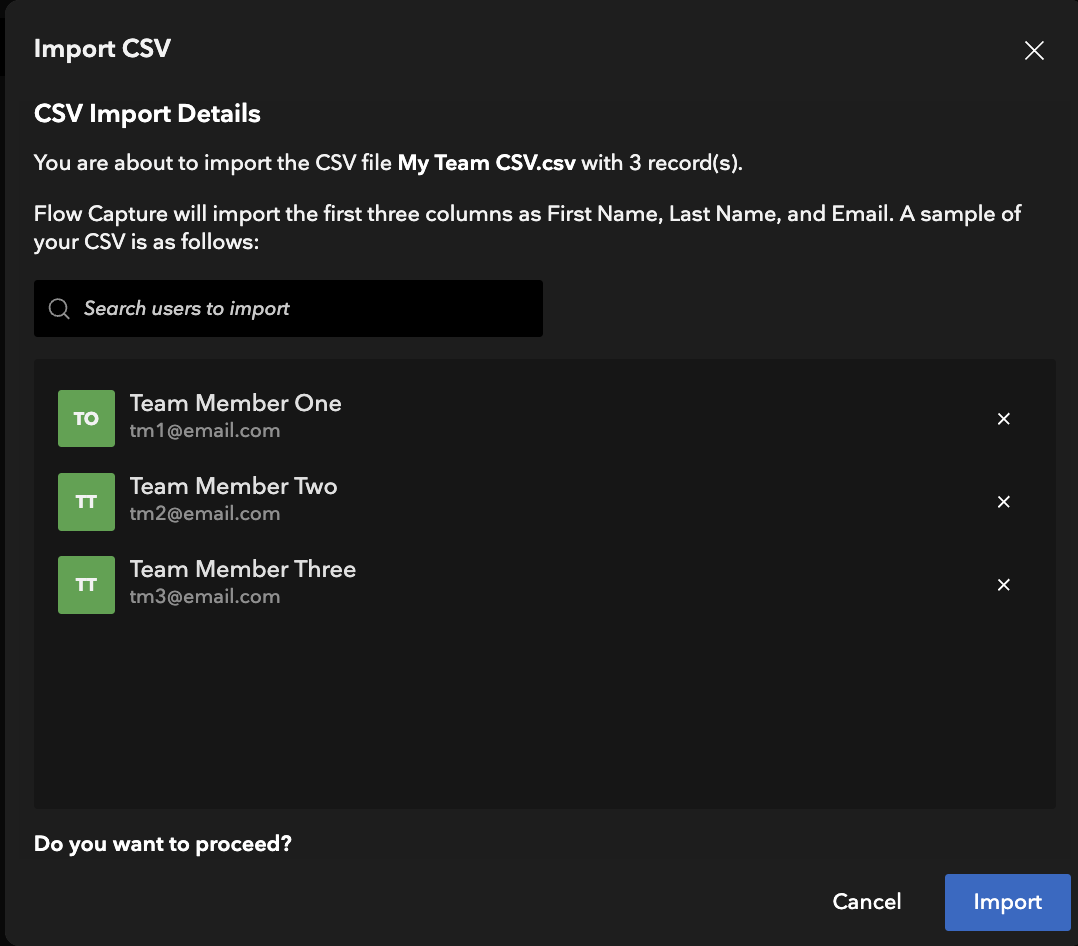
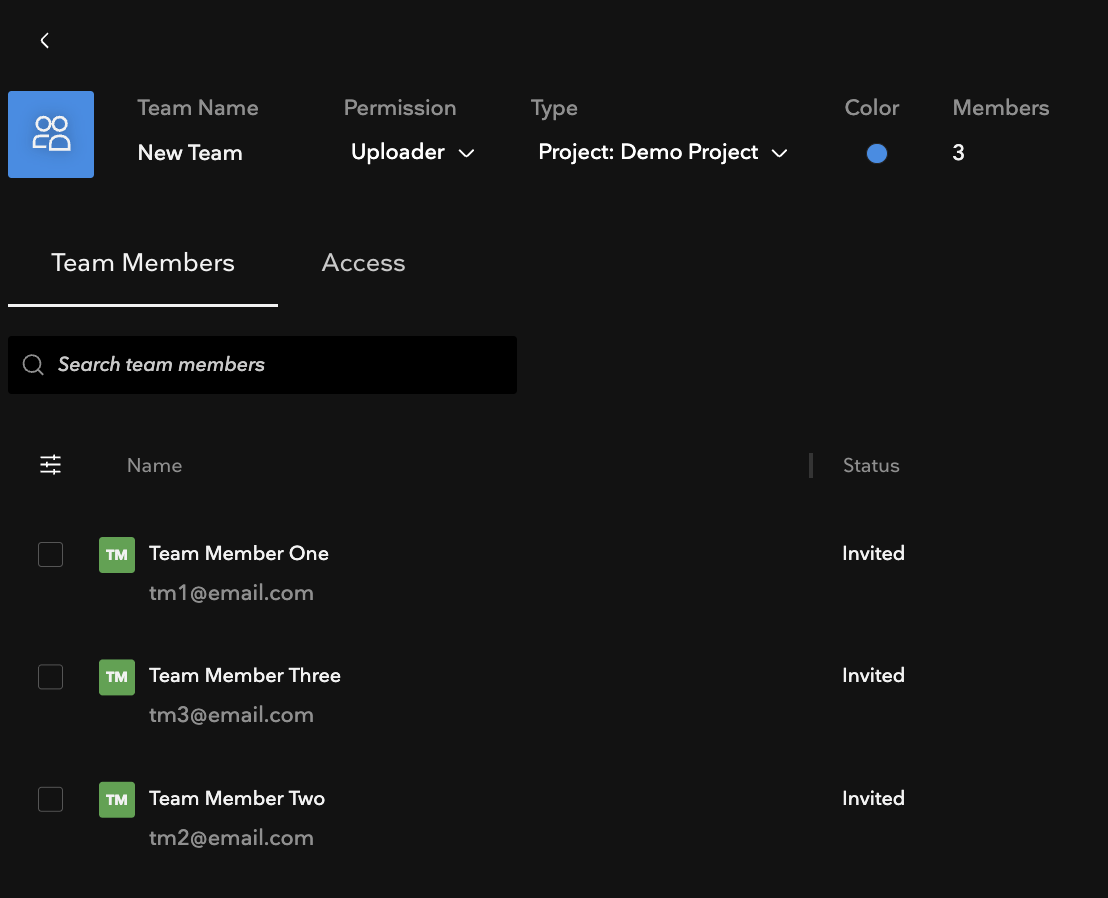
Once you click Import, you'll get a confirmation that the users have been created.
In addition to these users being added as contacts, they've also been added to the Team that we selected. If that Team has been granted access to any folders, these new users will also now have that same access.
Exporting CSVs
If you need to export a list of your users, you can do so by using the Export CSV function.
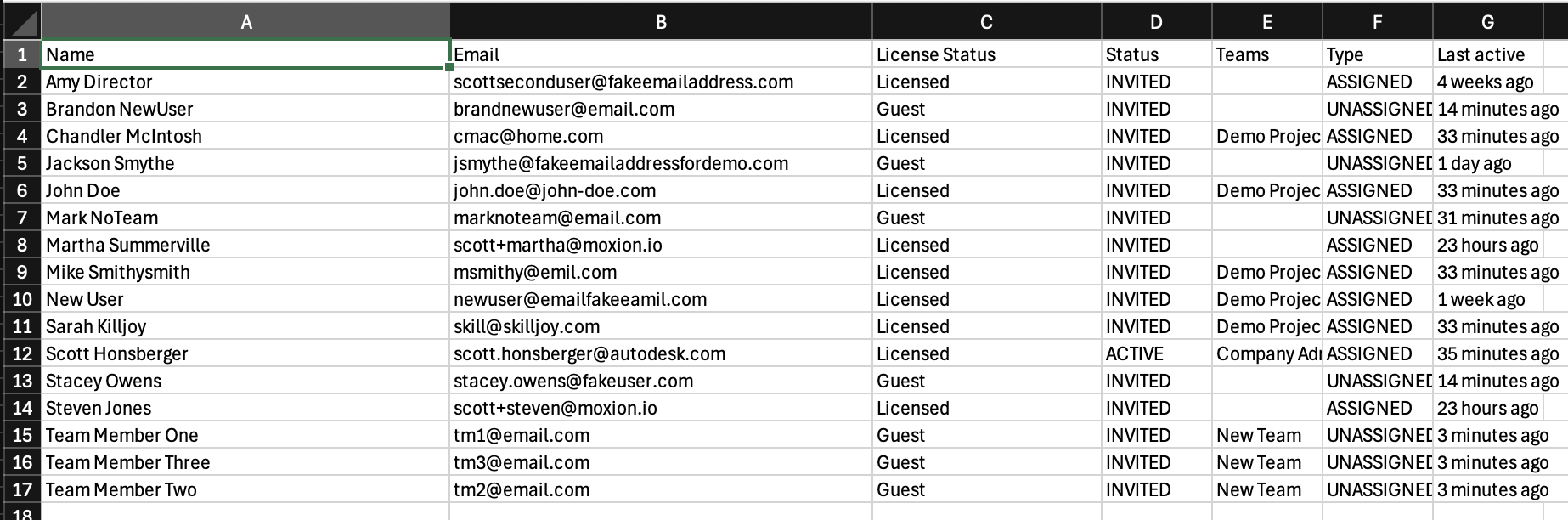
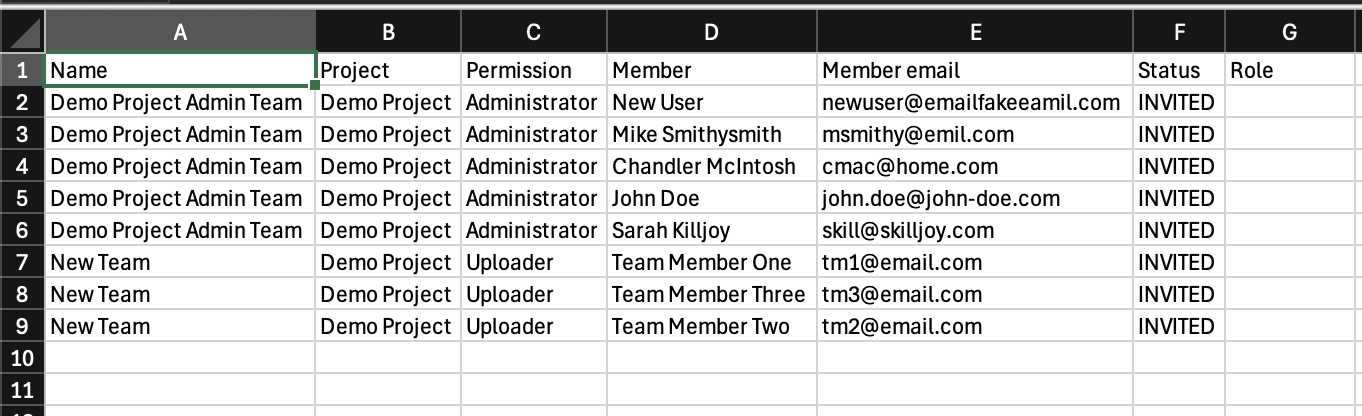
Notably, the Export CSV function will export information about whatever section you're currently viewing:
- Exporting CSV when on the "Users" tab will export the full list of your users.
- Exporting CSV when on the "Company Teams" tab will export all Company Teams, including the names of who are on those teams

- Exporting CSV when on the "Project Teams" tab will export all Project Teams for the Project you have selected in the drop down, including the names of who are on those teams
Note: New users are only sent invitations to create an account once they have been added to at least one folder. Therefore:
- If users are imported to a Team and that team has been added to a folder, the new users created will receive invitations to create an account.
- If users are imported to a Team and that team has NOT been added to a folder, the new users created won't receive an invitation to create an account until that team is added to a folder.